 Pivotdrill
Build pivot tables without thinking about it.
31 exercises on real business data: sales, expenses, staff, support tickets and store orders. Drop fields into Rows, Columns, Values and Filters, and every pivot is checked number by number.
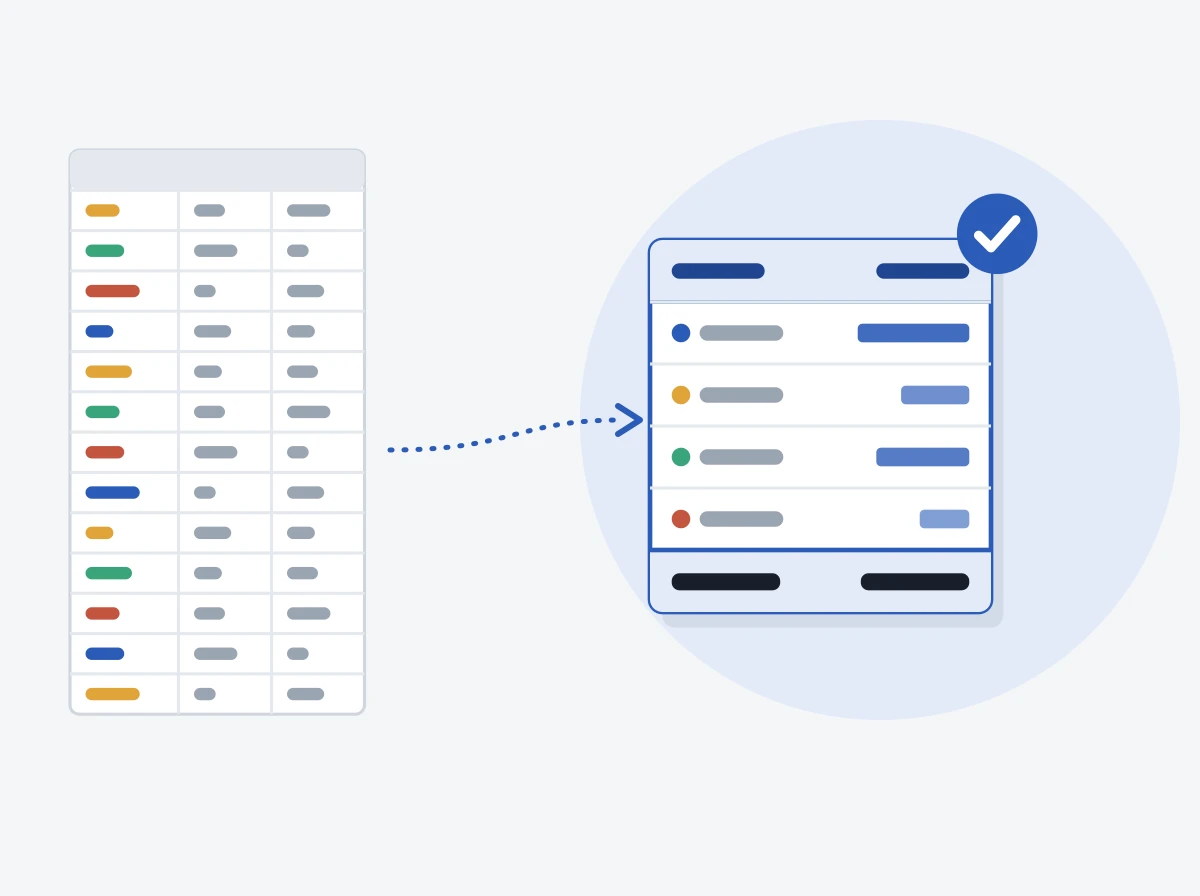
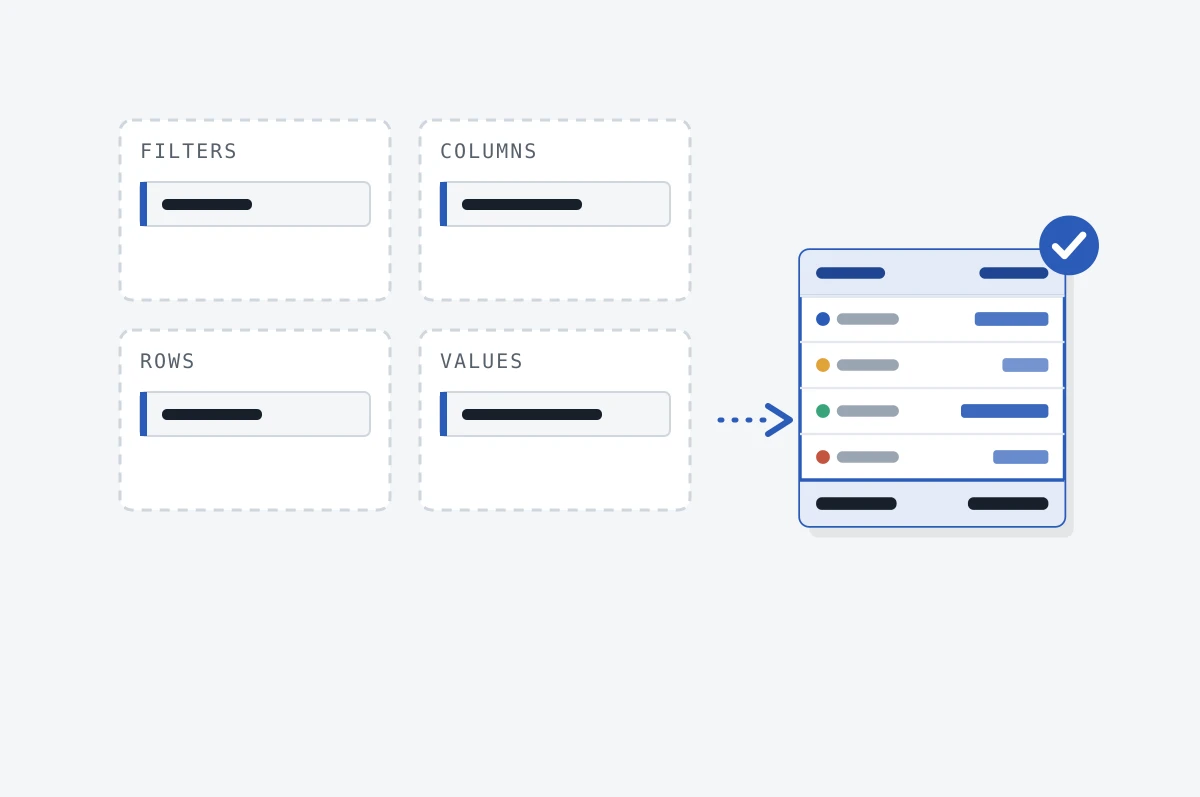
Real data, the real four areas, instant feedback.
- 01Read the requestEach task is phrased the way a manager would ask: revenue by region, approved spend by quarter, share of payroll by location.
- 02Build the pivotAdd fields to Filters, Columns, Rows and Values, pick Sum, Count or Average, group dates and switch Show values as. The table updates as you go.
- 03Learn what was offCheck answer names the problem: a field in the wrong area, Sum where Average was asked, a filter left open, the wrong sort. A hint and a worked setup follow.
Six levels, from your first sum to the reports people ask for at work.
| 6 | Basics | Rows, columns and values. Sum, Count, Average, Max and Min, and your first cross-tab. |
| 5 | Sorting and filtering | Sort by value to rank items, and report filters that combine like AND. |
| 5 | Dates | Group days into months, quarters and years, and filter on a grouped date. |
| 4 | Show values as | % of Grand Total, % of Row Total and % of Column Total, and when to use each. |
| 5 | Several values, nested rows | Two fields in Rows with subtotals, and the same field summarized more than one way. |
| 6 | Real work | Requests from Sales, Finance, Support and HR: commission lists, budget tracking, resolution times and payroll shares. |
Timed mode, like a skills assessment.Each exercise gets a clock. Hints and solutions stay locked until time is up, and your best times are kept.
Formulas next.Our sister site Formuladrill covers the Excel formulas that pivot tables do not: lookups, IF logic, text, dates and finance. Try Formuladrill
Start free. Pay once you are hooked.
Free
- 8 exercises, including filters, dates and percentages
- Instant checking and hints
- Timed mode
Pro
- Every level, including dates, Show values as and Real work
- Worked solutions and explanations
- Progress and best times saved to your account
You create a free account first, so Pro is attached to it.
Monthly is charged today and then every month until you cancel, in one click from your account page. Lifetime is one payment with no renewals. Full refund within 14 days of paying.
Questions
Do I need Excel installed?
No. Each exercise has a small dataset and a pivot builder in your browser with the same four areas Excel uses: Filters, Columns, Rows and Values. What you practice carries straight over to Excel and to Google Sheets.
How is my pivot checked?
Your pivot is calculated and compared with the expected one, number by number. Value fields can be in any order. If something is off, the feedback says what: a field in the wrong area, the wrong calculation, a missing filter or the wrong sort.
Do I need an account?
No. The free exercises work without one and save progress in your browser. A free account saves progress across devices, and Pro unlocks the rest.
How do I cancel the monthly plan?
Open Account and choose Cancel subscription. That is the whole process: you keep Pro until the end of the period you paid for and are not charged again. If Pro is not for you, you get a full refund within 14 days of paying.
What if my pivot is right but marked wrong?
Use the report link under the result. Reports are reviewed, and a check that is wrong gets fixed.